
If you have access to the General Ledger in Elite, you will be able to add a new general ledger account.
NOTE: The system comes pre-loaded with General Ledger accounts that already have appropriate names and are assigned to the correct categories. It is recommended that you use these existing accounts and simply rename them to names that better suit your needs.

For example, the system includes a General Ledger account called “Rent”, which is assigned to the category “Other Operating Expenses.” Instead of creating a new account, you can rename this account to something more specific, such as “Rent - 12 Main Rd.”

By renaming existing accounts rather than creating new ones, you can avoid cluttering the General Ledger with unnecessary additional accounts.

IMPORTANT: Do not rename or make any changes to CONTROL accounts.
NOTE: To see which General Ledger accounts are used as CONTROL accounts, click the following link: Where do I view the Control Accounts used by the system?
STEPS:
1. Click the left Hamburger menu icon.
2. Click on the Accountant menu.
3. Open the General Ledger module.
4. Click on the Filter button in the navigation bar:

The General Ledger Filter window will be displayed:
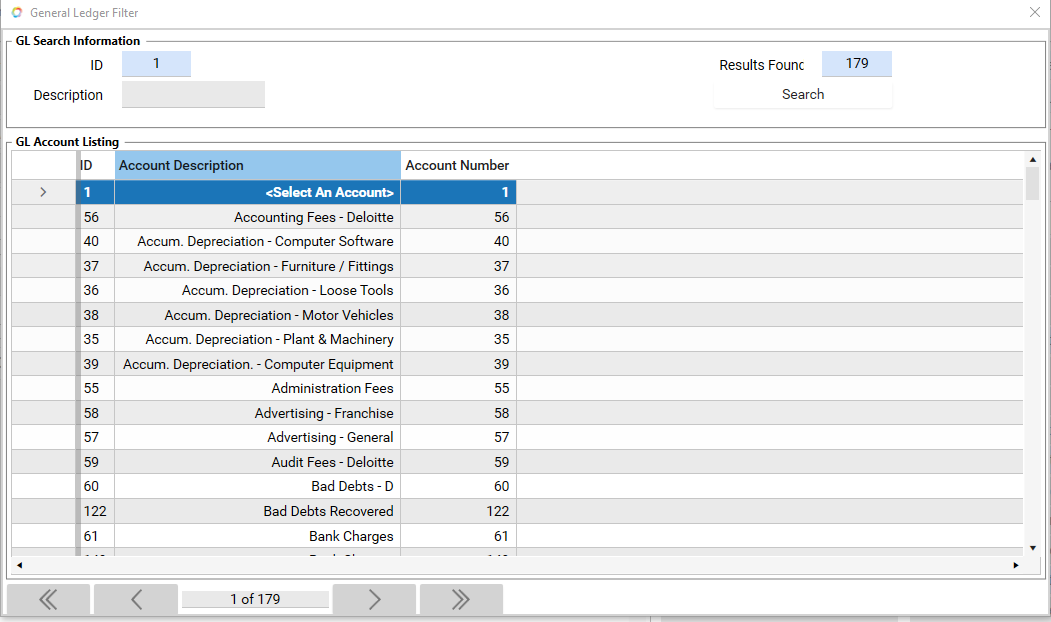
5. Type the search criteria in the Description field at the top of the General Ledger Filter window.
6. Press the "Enter" button on your keyboard.
7. The search results will be displayed:
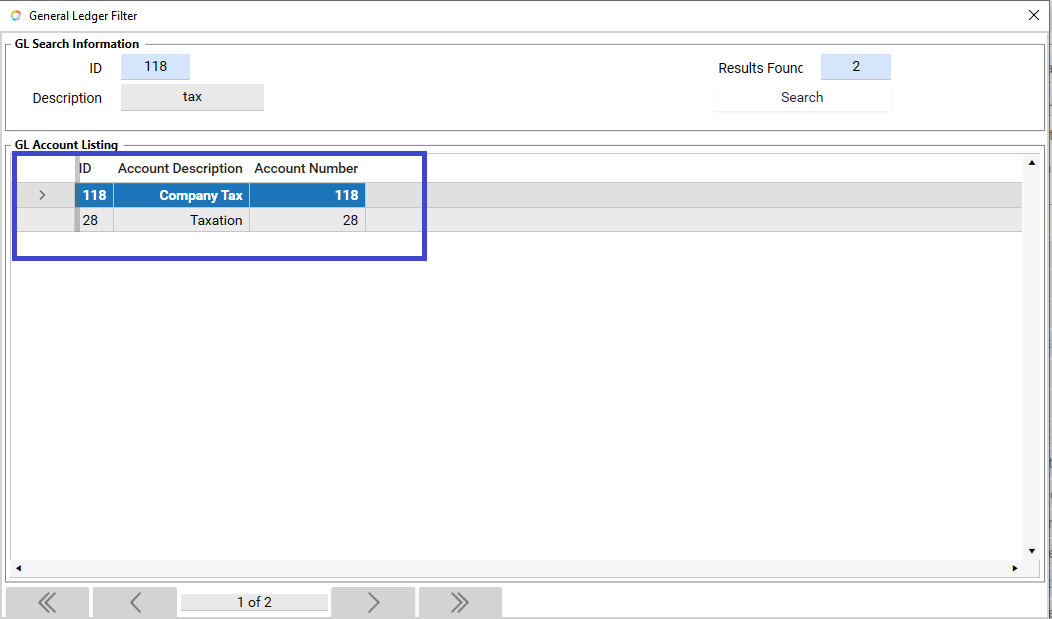
8. From the search results list, double-click the General Ledger account to open and view its detail.
9. To exit Filter Mode, click the Filter button on the navigation bar to reopen the General Ledger Filter window.