
If you have access to the Price Updates screen you will be able to run a price update.
NOTE: Spiralsoft is only provided with a recommended retail price list.
NOTE: To learn where you can download the price lists from, click on the following link: Where can I find the price lists for the price updates?
STEPS:
1. After downloading the price list/s, click the left Hamburger Menu Icon.
2. Click on the Products menu.
3. Open the Price Updates module.
4. Go to the "Load Price Update" tab.
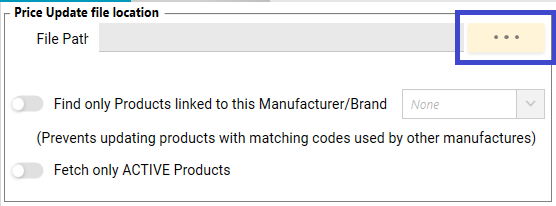
5. Click on the three dots next to File path to browse for the file on your computer or network:
6. A dialog box is displayed.
7. Change the file type to Text Files (*.txt):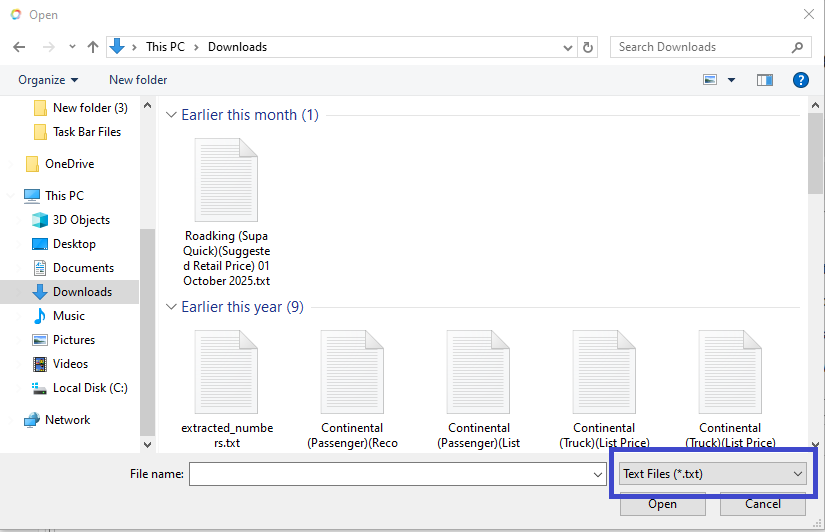
8. Click on the "Downloads" folder on the Left: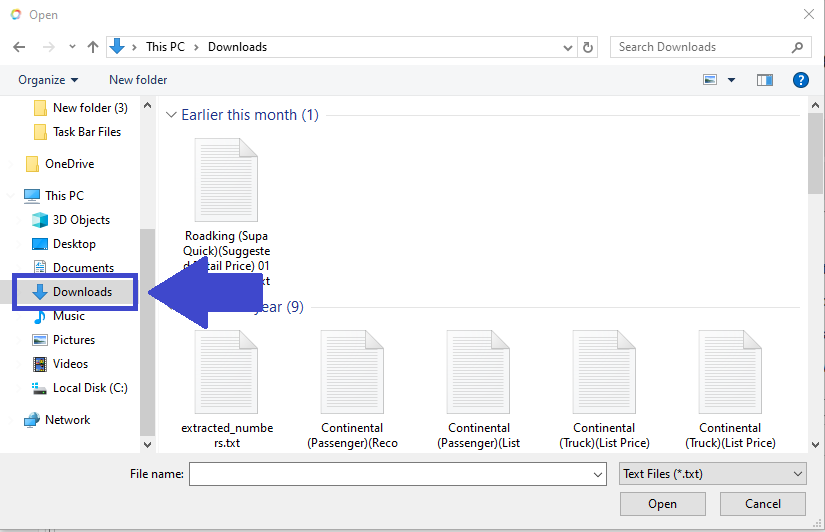
9. Select the file you would like to upload.
10. Click on the "Open" button.
NOTE: Only .txt (text file) or.csv (comma-separated values) files can be uploaded.
11. Ensure that only the following options are enabled:
- Find only Products linked to this Manufacturer/ Brand (Prevents updating products with matching codes used by other manufacturers)
- ADD all Unmatched Product Codes as NEW products to the Product Catalog.
- Post Data and ignore all errors
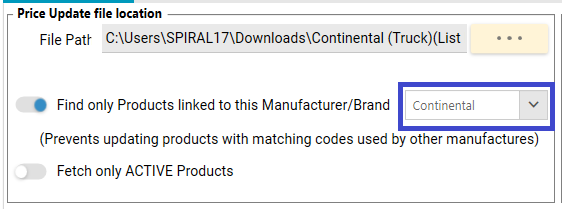
12. It is very important to select the correct manufacturer/ brand that you are busy updating, from the drop-down list:
13. Click on the "Load Data" button.
14. A system message will appear: Load Data successful. Validate the contents in the list below then Click the <Post Data> button to update the Product Prices.
15. Click on OK.
16. Click on the "Check Data for errors" button.
17. A system message will appear: Check data found _ errors.
18. Only if 0 errors were identified, click on OK.
19. Click on the "Update Prices" button.
20. A system message will appear: Has the correct MANUFACTURER been selected? If not, please select the correct manufacturer and LOAD THE DATA AGAIN before updating prices.
21. If the correct manufacturer has been selected, click on Yes.
22. A system message will appear: Confirm before Posting Price Update?
23. Click on Yes.
24. A system message will appear: Post Price Update data successful.
25. Click on OK.