If you have access to the General Journals screen in Elite, you will be able to post journals to the General Ledger.
STEPS:
1. Click the left Hamburger menu icon.
2. Click on the Accountant menu.
3. Open the General Journals module.
4. Click on the New Journal.
5. Select the following:
• Journal Date
• Accounting Period
6. Enter the Journal Narration. This should be an explanation/reason that you are processing the journal.
7. Click on Add Allocation, you will now be able to select the general ledger account to "debit" from the dropdown
In order to "debit" the account, input a positive Amount.
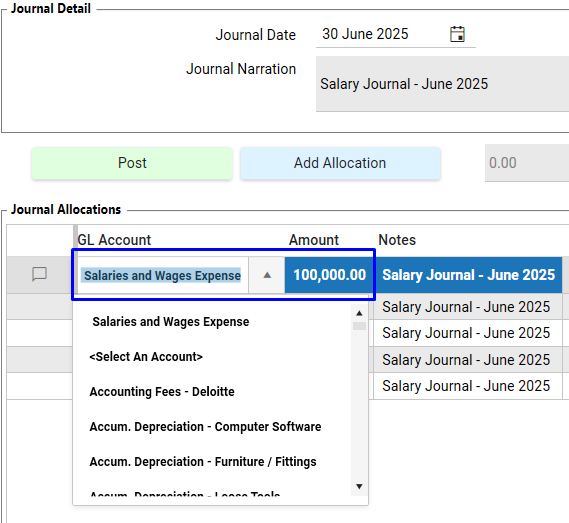
8. Click on Add Allocation again in order to add the general ledger account you wish to "credit", (Once you click on add allocation a new row will appear in order for you to select the general ledger account to be "credited")
In order to "credit" the account, input a negative Amount.
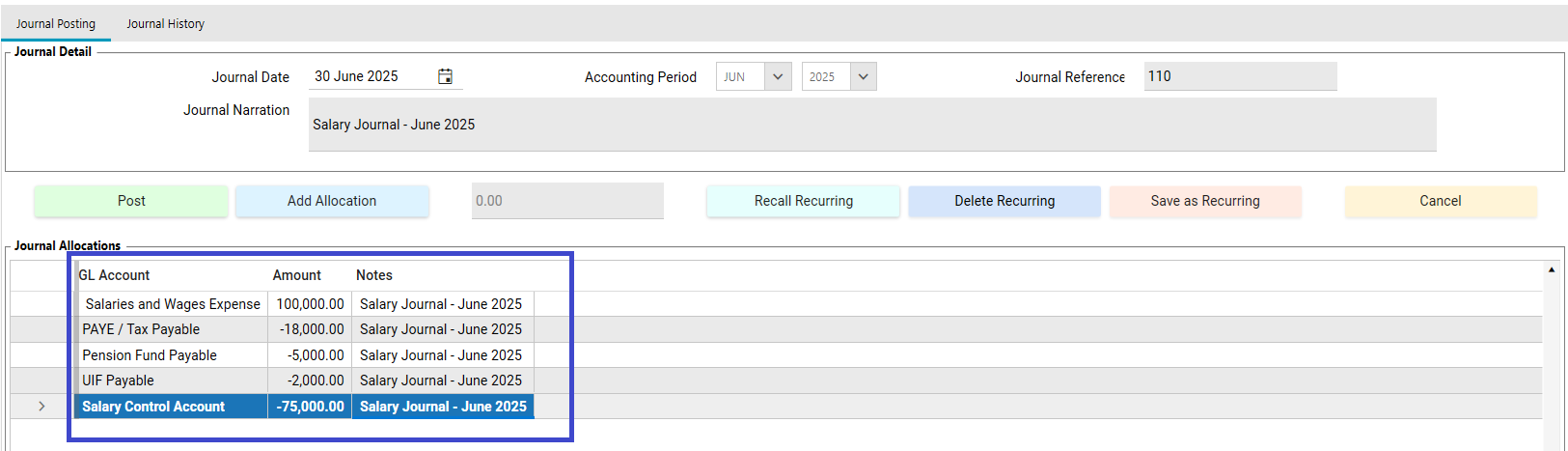
9. Click on Post in order to process the journal entry.
10. A system message will appear: Confirm information before posting.
10. Click on Yes if you wish to process the journal entry.
11. A system message will appear: New Journal Save successful.
12. Click OK.
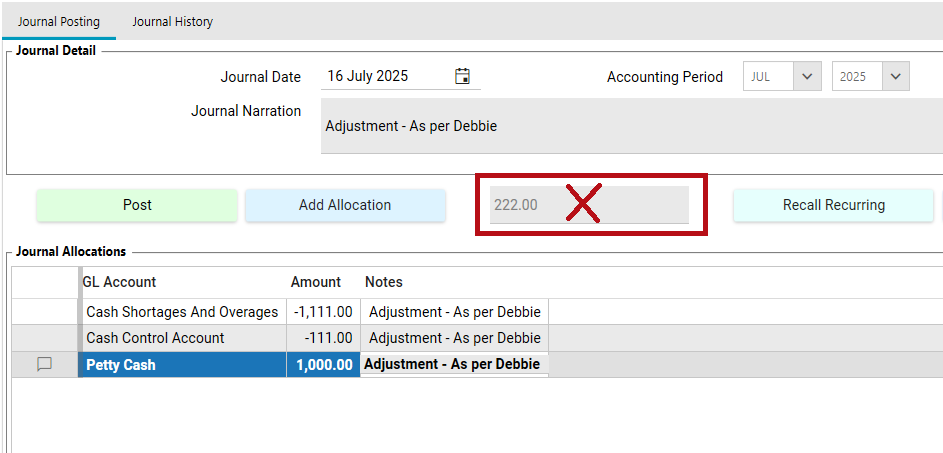
NOTE: The Post button will only be available when the journal entry balances (i.e., the total debits equal the total credits). If the journal does not balance, the Post button will be disabled and the out-of-balance amount will be displayed in the field next to the Add Allocation button.